1 - Domain User and Group Enumeration
Enumerate users and groups within an Active Directory domain
With the ability to authenticate to an Active Directory domain, we can now get a full list of users and groups on the domain. This can be helpful for us to plan further attacks and expand our access within the domain.
Domain Users
Linux Perspective
The --users option may be used with NetExec to enumerate domain users. Note we have to use protocol ldap and our target must be a domain controller.
nxc ldap <dc_host> -u <username> -p <password> --users
NetExec presents us with a list of users, when their password is last set, number of failed login attempts (for password spraying), as well as the description field.
╭─brian@rx-93-nu ~
╰─$ nxc ldap 10.10.0.3 -u amuro.ray -p 'Password1' --users
LDAP        10.10.0.3       389    RA-CAILUM        [*] Windows 11 / Server 2025 Build 26100 (name:RA-CAILUM) (domain:GUNDAM.local) (signing:Enforced) (channel binding:When Supported)
LDAP        10.10.0.3       389    RA-CAILUM        [+] GUNDAM.local\amuro.ray:Password1
LDAP        10.10.0.3       389    RA-CAILUM        [*] Enumerated 7 domain users: GUNDAM.local
LDAP        10.10.0.3       389    RA-CAILUM        -Username-                    -Last PW Set-       -BadPW-  -Description-
LDAP        10.10.0.3       389    RA-CAILUM        Administrator                 2025-06-21 11:53:50 0        Built-in account for administering the computer/domain
LDAP        10.10.0.3       389    RA-CAILUM        Guest                         <never>             0        Built-in account for guest access to the computer/domain
LDAP        10.10.0.3       389    RA-CAILUM        krbtgt                        2025-06-05 19:31:16 0        Key Distribution Center Service Account
LDAP        10.10.0.3       389    RA-CAILUM        amuro.ray                     2025-06-06 00:10:46 0
LDAP        10.10.0.3       389    RA-CAILUM        Char.Aznable                  2025-06-06 00:11:44 0
LDAP        10.10.0.3       389    RA-CAILUM        svc_sql                       2025-06-06 00:13:47 0        Password: Qwerty123
LDAP        10.10.0.3       389    RA-CAILUM        Bright.Noa                    2025-06-21 11:58:21 0
Windapsearch can query the domain controller for all domain users via LDAP. The -U option queries for all objects where objectCategory=user.
windapsearch.py -d <domain_fqdn> --dc-ip <dc_ip> -u <DOMAIN>\\<username> -p <password> -U
<DOMAIN> specified within -u should not include TLD (GUNDAM.LOCAL -> GUNDAM\\amuro.ray)
Windows Perspective
The Get-ADUser cmdlet from the built-in Active Directory PowerShell module can be used to enumerate domain users from a Windows machine.
PS C:\Users\Administrator> Get-ADUser -Filter * | select SamAccountName

SamAccountName
--------------
Administrator
Guest
krbtgt
amuro.ray
Char.Aznable
svc_sql
Bright.Noa
The net user command may be used as well.
PS C:\Users\Administrator> net user /domain

User accounts for \\RA-CAILUM

-------------------------------------------------------------------------------
Administrator            amuro.ray                Bright.Noa
Char.Aznable             Guest                    krbtgt
svc_sql
The command completed successfully.
More detailed information may be obtained using the Get-DomainUser function from PowerView.
PS C:\research> Import-Module .\PowerView.ps1
PS C:\research> Get-DomainUser -Identity amuro.ray -Domain gundam.local | Select-Object -Property name,samaccountname,description,memberof,whencreated,pwdlastset,lastlogontimestamp,accountexpires,admincount,userprincipalname,serviceprincipalname,useraccountcontrol


name                 : Amuro Ray
samaccountname       : amuro.ray
description          :
memberof             :
whencreated          : 6/6/2025 5:10:46 AM
pwdlastset           : 6/6/2025 12:10:46 AM
lastlogontimestamp   : 4/7/2026 12:59:11 PM
accountexpires       : NEVER
admincount           :
userprincipalname    : amuro.ray@GUNDAM.local
serviceprincipalname :
useraccountcontrol   : NORMAL_ACCOUNT, DONT_EXPIRE_PASSWORD
Testing Local Admin Access
Using PowerView function Test-AdminAccess, we may test if our current user is a local administrator on the local machine or a remote one.
PS C:\research> Test-AdminAccess -ComputerName RX-0-UNICORN

ComputerName IsAdmin
------------ -------
RX-0-UNICORN    True
Domain Groups
Linux Perspective
NetExec can be used with option --groups via LDAP protocol to enumerate domain groups.
nxc ldap <dc_host> -u <username> -p <password> --groups
╭─brian@rx-93-nu ~
╰─$ nxc ldap 10.10.0.3 -u amuro.ray -p 'Password1' --groups
LDAP        10.10.0.3       389    RA-CAILUM        [*] Windows 11 / Server 2025 Build 26100 (name:RA-CAILUM) (domain:GUNDAM.local) (signing:Enforced) (channel binding:When Supported)
LDAP        10.10.0.3       389    RA-CAILUM        [+] GUNDAM.local\amuro.ray:Password1
LDAP        10.10.0.3       389    RA-CAILUM        -Group-                                  -Members- -Description-
LDAP        10.10.0.3       389    RA-CAILUM        Administrators                           4         Administrators have complete and unrestricted access to the computer/domain
LDAP        10.10.0.3       389    RA-CAILUM        Users                                    3         Users are prevented from making accidental or intentional system-wide changes and can run most applications
LDAP        10.10.0.3       389    RA-CAILUM        Guests                                   2         Guests have the same access as members of the Users group by default, except for the
Guest account which is further restricted
LDAP        10.10.0.3       389    RA-CAILUM        Print Operators                          0         Members can administer printers installed on domain controllers
LDAP        10.10.0.3       389    RA-CAILUM        Backup Operators                         0         Backup Operators can override security restrictions for the sole purpose of backing up or restoring files
[...]
LDAP        10.10.0.3       389    RA-CAILUM        Cert Admins                              1
LDAP        10.10.0.3       389    RA-CAILUM        SQLServer2005SQLBrowserUser$RA-CAILUM    0         Members in the group have the required access and privileges to be assigned as the log on account for the associated instance of SQL Server Browser.
If we specify the name of a group after the option, we can get a list of members within that group.
nxc ldap <dc_host> -u <username> -p <password> --groups <group>
╭─brian@rx-93-nu ~
╰─$ nxc ldap 10.10.0.3 -u amuro.ray -p 'Password1' --groups 'Cert Admins'
LDAP        10.10.0.3       389    RA-CAILUM        [*] Windows 11 / Server 2025 Build 26100 (name:RA-CAILUM) (domain:GUNDAM.local) (signing:Enforced) (channel binding:When Supported)
LDAP        10.10.0.3       389    RA-CAILUM        [+] GUNDAM.local\amuro.ray:Password1
LDAP        10.10.0.3       389    RA-CAILUM        Bright Noa
Using the -G option with Windapsearch enumerates domain groups, while -m option enumerates members of a specific group.
windapsearch.py -d <domain_fqdn> --dc-ip <dc_ip> -u <DOMAIN>\\<username> -p <password> -G
windapsearch.py -d <domain_fqdn> --dc-ip <dc_ip> -u <DOMAIN>\\<username> -p <password> -m <group>
Windows Perspective
The native Get-ADGroup cmdlet may be used to get a list of domain groups.
PS C:\research> Get-ADGroup -Filter * | select name

name
----
Administrators
Users
Guests
Print Operators
Backup Operators
Replicator
Remote Desktop Users
Network Configuration Operators
Performance Monitor Users
Performance Log Users
[...]
Individual groups may be enumerated with -Identity option.
PS C:\research> Get-ADGroup -Identity Administrators


DistinguishedName : CN=Administrators,CN=Builtin,DC=GUNDAM,DC=local
GroupCategory     : Security
GroupScope        : DomainLocal
Name              : Administrators
ObjectClass       : group
ObjectGUID        : 81039797-5691-454c-be37-268a5b3e7cbd
SamAccountName    : Administrators
SID               : S-1-5-32-544
A list of domain groups can also be obtained using Get-DomainGroups function from PowerView.
PS C:\research> Get-DomainGroup | select name

name
----
Administrators
Users
Guests
Print Operators
Backup Operators
Replicator
Remote Desktop Users
Network Configuration Operators
Performance Monitor Users
Performance Log Users
[...]
To list out members to a group, we use Get-ADGroupMember cmdlet:
PS C:\research> Get-ADGroupMember -Identity Administrators


distinguishedName : CN=SQL Service,CN=Users,DC=GUNDAM,DC=local
name              : SQL Service
objectClass       : user
objectGUID        : 00a6b75d-cae4-4993-960d-f74b18b0b603
SamAccountName    : svc_sql
SID               : S-1-5-21-790304770-1385196242-1780550448-1105

distinguishedName : CN=Domain Admins,OU=Security Groups,DC=GUNDAM,DC=local
name              : Domain Admins
objectClass       : group
objectGUID        : 31b2e9ce-edfd-4de0-9123-c90f0dbfdcfd
SamAccountName    : Domain Admins
SID               : S-1-5-21-790304770-1385196242-1780550448-512

distinguishedName : CN=Enterprise Admins,OU=Security Groups,DC=GUNDAM,DC=local
name              : Enterprise Admins
objectClass       : group
objectGUID        : e7e43411-7fa8-4eab-8755-eae42aca3b61
SamAccountName    : Enterprise Admins
SID               : S-1-5-21-790304770-1385196242-1780550448-519

distinguishedName : CN=Administrator,CN=Users,DC=GUNDAM,DC=local
name              : Administrator
objectClass       : user
objectGUID        : 0646e2a6-ed78-46df-b79e-cd93409f29b3
SamAccountName    : Administrator
SID               : S-1-5-21-790304770-1385196242-1780550448-500
The PowerView function Get-DomainGroupMember achives the above, with the added ability to unroll nested group memberships when used with -Recurse option.
PS C:\research> Get-DomainGroupMember -Identity "Domain Admins" -Recurse


GroupDomain             : GUNDAM.local
GroupName               : Domain Admins
GroupDistinguishedName  : CN=Domain Admins,OU=Security Groups,DC=GUNDAM,DC=local
MemberDomain            : GUNDAM.local
MemberName              : svc_sql
MemberDistinguishedName : CN=SQL Service,CN=Users,DC=GUNDAM,DC=local
MemberObjectClass       : user
MemberSID               : S-1-5-21-790304770-1385196242-1780550448-1105

GroupDomain             : GUNDAM.local
GroupName               : Domain Admins
GroupDistinguishedName  : CN=Domain Admins,OU=Security Groups,DC=GUNDAM,DC=local
MemberDomain            : GUNDAM.local
MemberName              : Administrator
MemberDistinguishedName : CN=Administrator,CN=Users,DC=GUNDAM,DC=local
MemberObjectClass       : user
MemberSID               : S-1-5-21-790304770-1385196242-1780550448-500
Domain Computers
Computer accounts are special user accounts that is assigned to each domain-joined computer for it to participate in the domain. They can be enumerated using the --computers option with NetExec.
nxc ldap <dc_host> -u <username> -p <password> --users
╭─brian@rx-93-nu ~
╰─$ nxc ldap 10.10.0.3 -u amuro.ray -p 'Password1' --computers
LDAP        10.10.0.3       389    RA-CAILUM        [*] Windows 11 / Server 2025 Build 26100 (name:RA-CAILUM) (domain:GUNDAM.local) (signing:Enforced) (channel binding:When Supported)
LDAP        10.10.0.3       389    RA-CAILUM        [+] GUNDAM.local\amuro.ray:Password1
LDAP        10.10.0.3       389    RA-CAILUM        [*] Total records returned: 5
LDAP        10.10.0.3       389    RA-CAILUM        RA-CAILUM$
LDAP        10.10.0.3       389    RA-CAILUM        RX-0-UNICORN$
LDAP        10.10.0.3       389    RA-CAILUM        MSN-04-SAZABI$
LDAP        10.10.0.3       389    RA-CAILUM        SINANJU$
LDAP        10.10.0.3       389    RA-CAILUM        MSZ-006-ZETA$
From the Windows Perspective, Get-DomainComputer may be used to find comptuer accounts.
PS C:\research> Get-DomainComputer | select samaccountname

samaccountname
--------------
RA-CAILUM$
RX-0-UNICORN$
MSN-04-SAZABI$
SINANJU$
MSZ-006-ZETA$
RID Cycling
RID Cycling is a technique used to enumerate users and groups on Windows systems. Every account (users and groups) have a Security Identifier (SID) that looks like the following:
S-1-5-21-<domain identifier>-RID
The RID portion (Relative Identifier) uniquely identifies a objects within a domain.
RID Cycling cycles through ranges of valid RIDs to enumerate valid users and accounts.
The number of users and groups discovered depend on the maximum and minimum RID values being cycled. This is especially true within very large organizations.
We can use lookupsid.py from Impacket for this purpose.
lookupsid.py <user>:<password>@<host> [<max_sid>]
╭─brian@rx-93-nu ~
╰─$ lookupsid.py amuro.ray:Password1@10.10.0.3
Impacket v0.13.0.dev0 - Copyright Fortra, LLC and its affiliated companies

[*] Brute forcing SIDs at 10.10.0.3
[*] StringBinding ncacn_np:10.10.0.3[\pipe\lsarpc]
[*] Domain SID is: S-1-5-21-790304770-1385196242-1780550448
498: GUNDAM\Enterprise Read-only Domain Controllers (SidTypeGroup)
500: GUNDAM\Administrator (SidTypeUser)
501: GUNDAM\Guest (SidTypeUser)
502: GUNDAM\krbtgt (SidTypeUser)
512: GUNDAM\Domain Admins (SidTypeGroup)
513: GUNDAM\Domain Users (SidTypeGroup)
514: GUNDAM\Domain Guests (SidTypeGroup)
515: GUNDAM\Domain Computers (SidTypeGroup)
516: GUNDAM\Domain Controllers (SidTypeGroup)
517: GUNDAM\Cert Publishers (SidTypeAlias)
518: GUNDAM\Schema Admins (SidTypeGroup)
519: GUNDAM\Enterprise Admins (SidTypeGroup)
520: GUNDAM\Group Policy Creator Owners (SidTypeGroup)
521: GUNDAM\Read-only Domain Controllers (SidTypeGroup)
522: GUNDAM\Cloneable Domain Controllers (SidTypeGroup)
525: GUNDAM\Protected Users (SidTypeGroup)
526: GUNDAM\Key Admins (SidTypeGroup)
527: GUNDAM\Enterprise Key Admins (SidTypeGroup)
528: GUNDAM\Forest Trust Accounts (SidTypeGroup)
529: GUNDAM\External Trust Accounts (SidTypeGroup)
553: GUNDAM\RAS and IAS Servers (SidTypeAlias)
571: GUNDAM\Allowed RODC Password Replication Group (SidTypeAlias)
572: GUNDAM\Denied RODC Password Replication Group (SidTypeAlias)
1000: GUNDAM\RA-CAILUM$ (SidTypeUser)
1101: GUNDAM\DnsAdmins (SidTypeAlias)
1102: GUNDAM\DnsUpdateProxy (SidTypeGroup)
1103: GUNDAM\amuro.ray (SidTypeUser)
1104: GUNDAM\Char.Aznable (SidTypeUser)
1105: GUNDAM\svc_sql (SidTypeUser)
1106: GUNDAM\RX-0-UNICORN$ (SidTypeUser)
1107: GUNDAM\MSN-04-SAZABI$ (SidTypeUser)
1109: GUNDAM\Bright.Noa (SidTypeUser)
1110: GUNDAM\Cert Admins (SidTypeGroup)
1115: GUNDAM\SINANJU$ (SidTypeUser)
1124: GUNDAM\MSZ-006-ZETA$ (SidTypeUser)
1125: GUNDAM\SQLServer2005SQLBrowserUser$RA-CAILUM (SidTypeAlias)
NetExec also have option --rid-brute for us to perform the same enumeration technique.
nxc smb <host> -u <username> -p <password> --rid-brute
╭─brian@rx-93-nu ~
╰─$ nxc smb 10.10.0.3 -u amuro.ray -p 'Password1' --rid-brute
SMB         10.10.0.3       445    RA-CAILUM        [*] Windows 11 / Server 2025 Build 26100 x64 (name:RA-CAILUM) (domain:GUNDAM.local) (signing:False) (SMBv1:None)
SMB         10.10.0.3       445    RA-CAILUM        [+] GUNDAM.local\amuro.ray:Password1
SMB         10.10.0.3       445    RA-CAILUM        498: GUNDAM\Enterprise Read-only Domain Controllers (SidTypeGroup)
SMB         10.10.0.3       445    RA-CAILUM        500: GUNDAM\Administrator (SidTypeUser)
SMB         10.10.0.3       445    RA-CAILUM        501: GUNDAM\Guest (SidTypeUser)
SMB         10.10.0.3       445    RA-CAILUM        502: GUNDAM\krbtgt (SidTypeUser)
SMB         10.10.0.3       445    RA-CAILUM        512: GUNDAM\Domain Admins (SidTypeGroup)
[...]
Tip: we can grep for SidTypeUser if we only want a list of users or SidTypeGroup for a list of groups.
SPN Users
Identifying service accounts, i.e. accounts with one or more Service Principal Names (SPNs) help us find opportunities for attack such as Kerberoasting or Silver Ticket.
We may use GetUserSPNs.py without the -request option to get a list of service accounts and their SPNs.
GetUserSPNs.py -dc-ip <dc_ip> <domain_fqdn>/<username>:<password>
╭─brian@rx-93-nu ~
╰─$ GetUserSPNs.py -dc-ip 10.10.0.3 gundam.local/amuro.ray:Password1
Impacket v0.13.0.dev0 - Copyright Fortra, LLC and its affiliated companies

ServicePrincipalName                        Name     MemberOf                                                              PasswordLastSet             LastLogon                   Delegation
------------------------------------------  -------  --------------------------------------------------------------------  --------------------------  --------------------------  ----------
MSSQLSvc/RA-CAILUM.GUNDAM.local:1433        svc_sql  CN=Group Policy Creator Owners,OU=Security Groups,DC=GUNDAM,DC=local  2025-06-06 00:13:47.605590  2026-04-07 16:16:56.632421

MSSQLSvc/RA-CAILUM.GUNDAM.local:SQLEXPRESS  svc_sql  CN=Group Policy Creator Owners,OU=Security Groups,DC=GUNDAM,DC=local  2025-06-06 00:13:47.605590  2026-04-07 16:16:56.632421
Alternatively, windapsearch with option --user-spns may also be used to retrieve a list of accounts with SPNs via LDAP.
windapsearch.py -d <domain_fqdn> --dc-ip <dc_ip> -u <DOMAIN>\\<username> -p <password> --user-spns
From the Windows Perspective, Get-ADUser may be used with filter ServicePrincipalName -ne "$null" to obtain SPN accounts.
Get-ADUser -Filter {ServicePrincipalName -ne "$null"} -Properties ServicePrincipalName
Alternatively, the Get-DomainUser function from PowerView may be used with -SPN option.
Get-DomainUser -SPN | select samaccountname,serviceprincipalname
Users with Kerberos Pre-Authentication Disabled
There is an option to disable requirement for Kerberos Pre-Authentication inside the UAC options for users within Active Directory. The user is thus vulnerable to AS-REProasting. We can identify AS-REProastable users with GetNPUsers.py without the -request option from Impacket on a Linux Machine.
╭─brian@rx-93-nu ~
╰─$ GetNPUsers.py -dc-ip 10.10.0.3 GUNDAM.LOCAL/amuro.ray:Password1
Impacket v0.13.0.dev0 - Copyright Fortra, LLC and its affiliated companies

Name          MemberOf  PasswordLastSet             LastLogon  UAC
------------  --------  --------------------------  ---------  --------
hathaway.noa            2026-04-09 20:36:53.519673  <never>    0x410200
From a Windows Machine, this can be identified using the -PreauthNotRequired option for Get-DomainUser function from PowerView.
PS C:\research> Get-DomainUser -PreauthNotRequired | select samaccountname,userprincipalname,useraccountcontrol | fl


samaccountname     : hathaway.noa
userprincipalname  : hathaway.noa@GUNDAM.local
useraccountcontrol : NORMAL_ACCOUNT, DONT_EXPIRE_PASSWORD, DONT_REQ_PREAUTH
Logged on Users
If our user have admin privileges on the target (indicated by NetExec with the yellow Pwn3d! marker), we can enumerate logged on users using option --loggedon-users
nxc smb <host> -u <username> -p <password> --loggedon-users
2 - Domain Enumeration with Bloodhound CE
Collect and analyze domain data with Bloodhound CE
BloodHound allows information about domain accounts and their relationships to be collected automatically and then analyzed and presented in a graph format. It is very powerful to discover hidden and often unintended access rights and privileges possessed by principals. It also give suggestions on how attackers may abuse those access to achieve lateral movement or privilege escalation.
Please consult this quick start guide on how to install and set up the newest version of BloodHound Community Edition.
Collecting Domain Data
After installing BloodHound CE, we may launch it with the bloodhound up command. We can then go to localhost:8080 with a web browser and login with the credentials provided during setup.
We need to collect data on the target domain in order for BloodHound to analyze them. This can be done using collectors from both Windows and Linux.
Note
We need to use collectors specifically made for BloodHound CE, not BloodHound Legacyin order for BloodHound CE to read the data successfully.
SharpHound (Windows)
SharpHound helps us to collect domain information from the perspective of a domain Windows computer. We may navigate to the Download Collectors tab from the left-side menu, and download the latest SharpHound release.
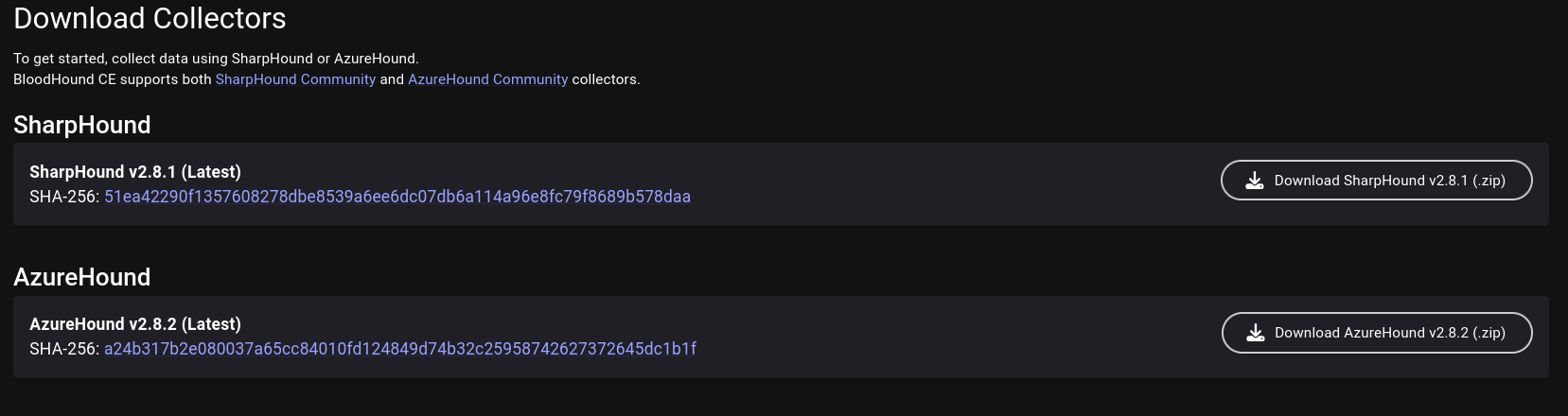
SharpHound comes in as both a PowerShell module (.ps1) and a C#-compiled executable (.exe). We may choose to transfer either to the domain computer.
PowerShell Version:
Import-Module .\SharpHound.ps1
Invoke-BloodHound -CollectionMethod All
C# Executable:
SharpHound may take a while to collect the data. Once done, the domain data is stored inside a Zip archive. We want to transfer the files to our machine and feed them into BloodHound.
[...]
2026-04-10T11:21:53.4090266-07:00|INFORMATION|SharpHound Enumeration Completed at 11:21 AM on 4/10/2026! Happy Graphing!
PS C:\temp> ls


    Directory: C:\temp


Mode                 LastWriteTime         Length Name
----                 -------------         ------ ----
-a----         4/10/2026  11:21 AM          42836 20260410112007_BloodHound.zip
-a----         4/10/2026  11:21 AM           2038 NDJlZTM5N2ItODYwNy00N2VkLThkMjEtYzI4MGJiMWU2ZGRk.bin
-a----        11/25/2025   5:13 PM        1316352 SharpHound.exe
BloodHound Python (Linux)
If we don’t have the ability to execute code as a domain user or SYSTEM on a domain computer, but we have access to the credentials of a domain user, we may use bloodhound-python to collect data from the perspective of a Linux machine.
bloodhound-ce-python -c all -d <domain_fqdn> -u <username> -p <password> -dc <dc_hostname> -ns <dc_ip>
BloodHound-python stores the collected data inside JSON files without archiving them, but they can still be imported to BloodHound nonetheless.
╭─brian@rx-93-nu /tmp/bloodhound
╰─$ bloodhound-ce-python -c all -d gundam.local -u amuro.ray -p "Password1" -dc ra-cailum.gundam.local -ns 10.10.0.3
INFO: BloodHound.py for BloodHound Community Edition
INFO: Found AD domain: gundam.local
INFO: Getting TGT for user
INFO: Connecting to LDAP server: ra-cailum.gundam.local
WARNING: LDAP Authentication is refused because LDAP signing is enabled. Trying to connect over LDAPS instead...
INFO: Found 1 domains
INFO: Found 1 domains in the forest
INFO: Found 5 computers
INFO: Connecting to LDAP server: ra-cailum.gundam.local
WARNING: LDAP Authentication is refused because LDAP signing is enabled. Trying to connect over LDAPS instead...
INFO: Found 9 users
INFO: Found 57 groups
INFO: Found 2 gpos
INFO: Found 2 ous
INFO: Found 19 containers
INFO: Found 0 trusts
INFO: Starting computer enumeration with 10 workers
INFO: Querying computer: msz-006-zeta.gundam.local
INFO: Querying computer: SINANJU.GUNDAM.local
INFO: Querying computer: MSN-04-SAZABI.GUNDAM.local
INFO: Querying computer: RX-0-UNICORN.GUNDAM.local
INFO: Querying computer: RA-CAILUM.GUNDAM.local
INFO: Done in 00M 02S
╭─brian@rx-93-nu /tmp/bloodhound
╰─$ ls
20260410132613_computers.json   20260410132613_domains.json  20260410132613_groups.json  20260410132613_users.json
20260410132613_containers.json  20260410132613_gpos.json     20260410132613_ous.json
Importing Data
Back on BloodHound, we click on the Quick Upload tab on the left-side menu, which presents this upload pop-up. We click on the upload box and choose the domain data files we gathered using collectors.
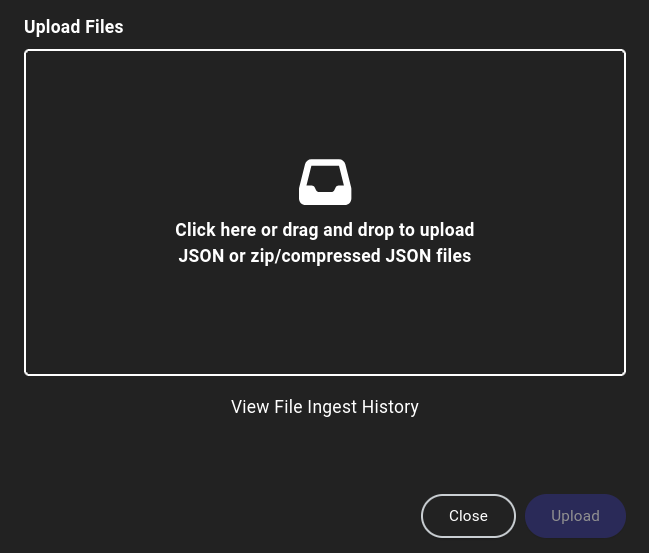
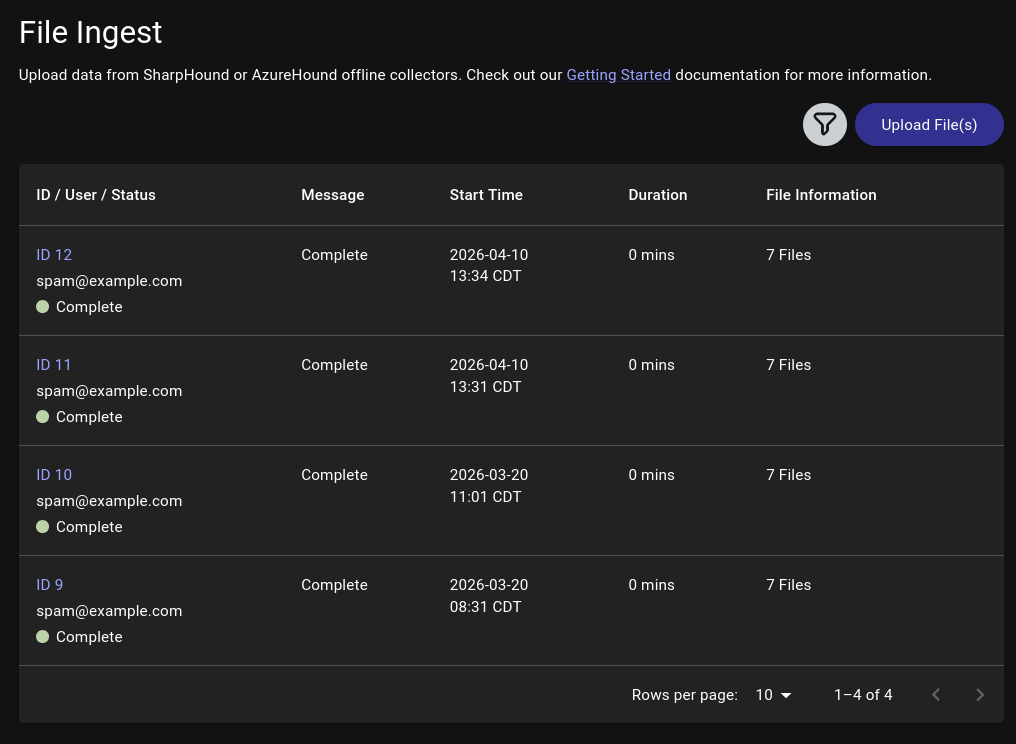
We may close out the pop-up once all files have been successfully uploaded, or check on the progress of data processing by clicking on View File Ingest History, which may take a while depending on the size of the target domain.
Domain Analysis
The first step we should do is to search for users and other objects we control, then right click on them and select Add to Owned. A small skull symbol will appear at the bottom right corner of the object.

Next, we left-click on the user and the Object Information table will pop up on the right, allowing us to view user attributes as well relationships such as:
- Sessions on domain machines
- Group Memberships
- Local Admin Privileges
- Execution Privileges (RDP, WinRM, MSSQL)
- OutBound Object Control (What this user object controls)
- InBound Object Control (What objects control this user)
All such information reveal possible lateral movement paths we may take inside the domain to expand our access.
Edge Analysis
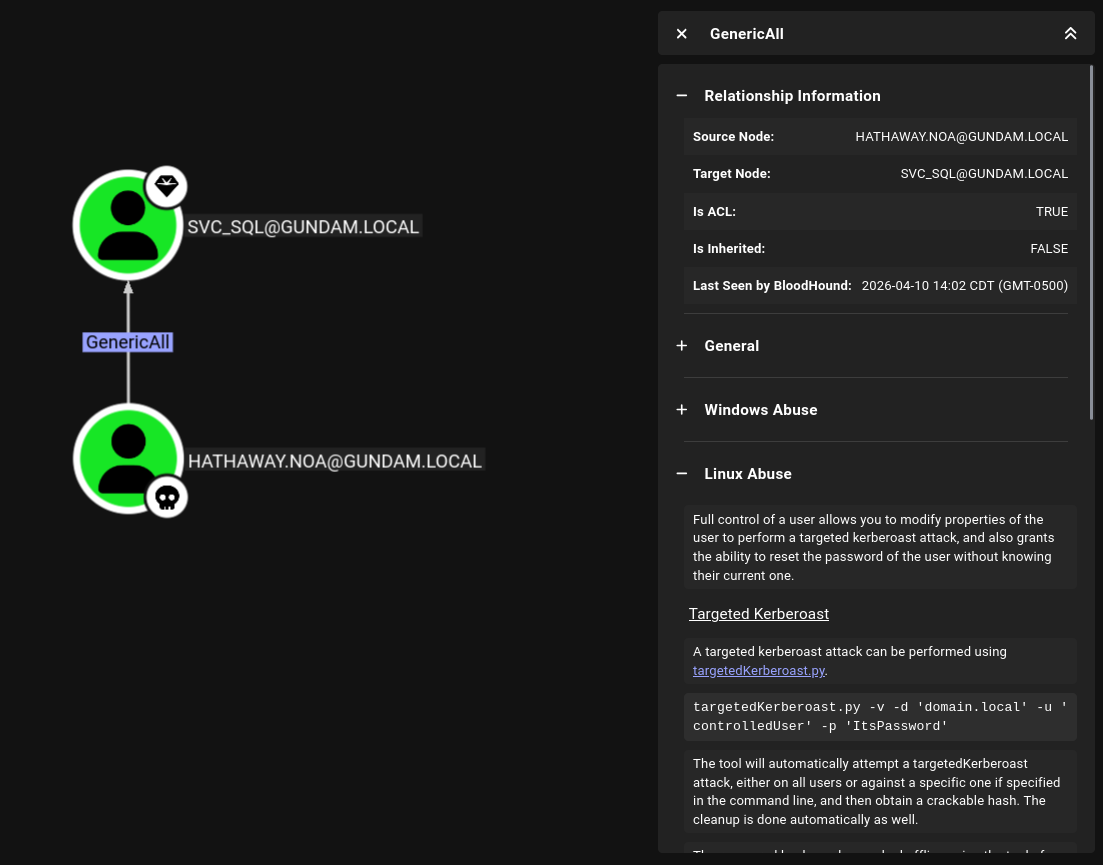
BloodHound represents the domain as a graph. Objects (users, computers, groups, domains, etc.) are nodes and relationships (group memberships, privileges, access rights, and etc.) are edges connecting the nodes. For example, the hathaway.noa user inside gundam.local demo domain is found with GenericAll access rights over the svc_sql service account.
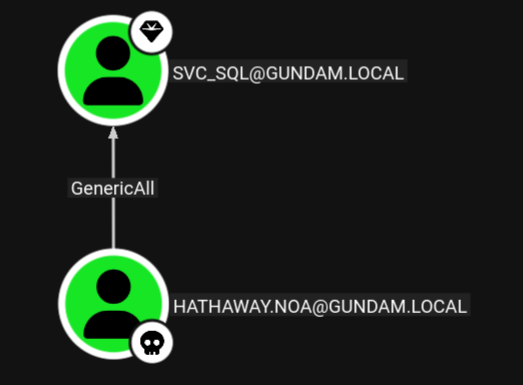
we can click on the edge, and BloodHound presents us with information about the GenericAll access rights, as well as methods on how to abuse it from Windows or Linux.
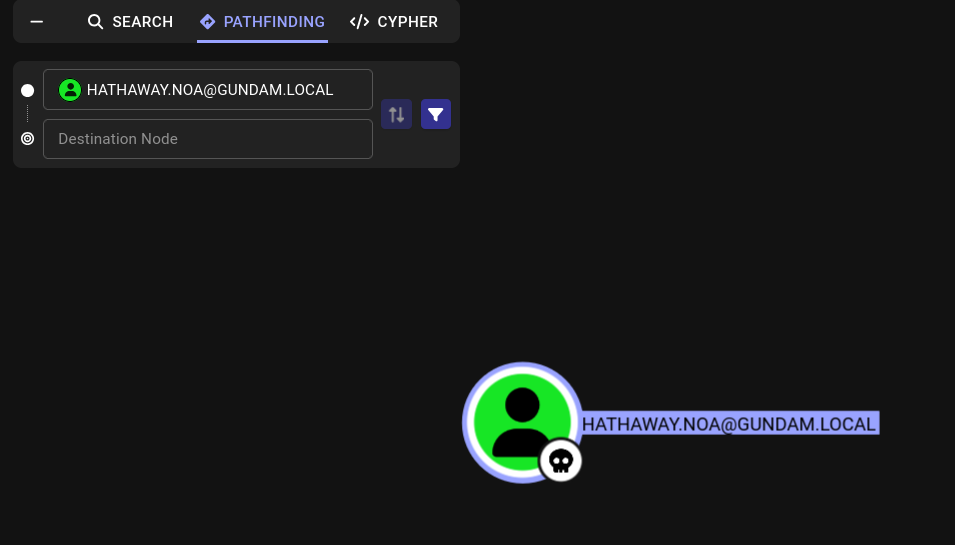
We can also utilize BloodHound to discover multi-step attack path. We want to right-click on our owned user and select set as starting node. The Pathfinding tab will open up on the left, allowing us to enter our destination node.
Here, we enter and select ra-cailum.gundam.local, the domain controller of the gundam.local domain. BloodHound presents us with a clear path to the domain controller.
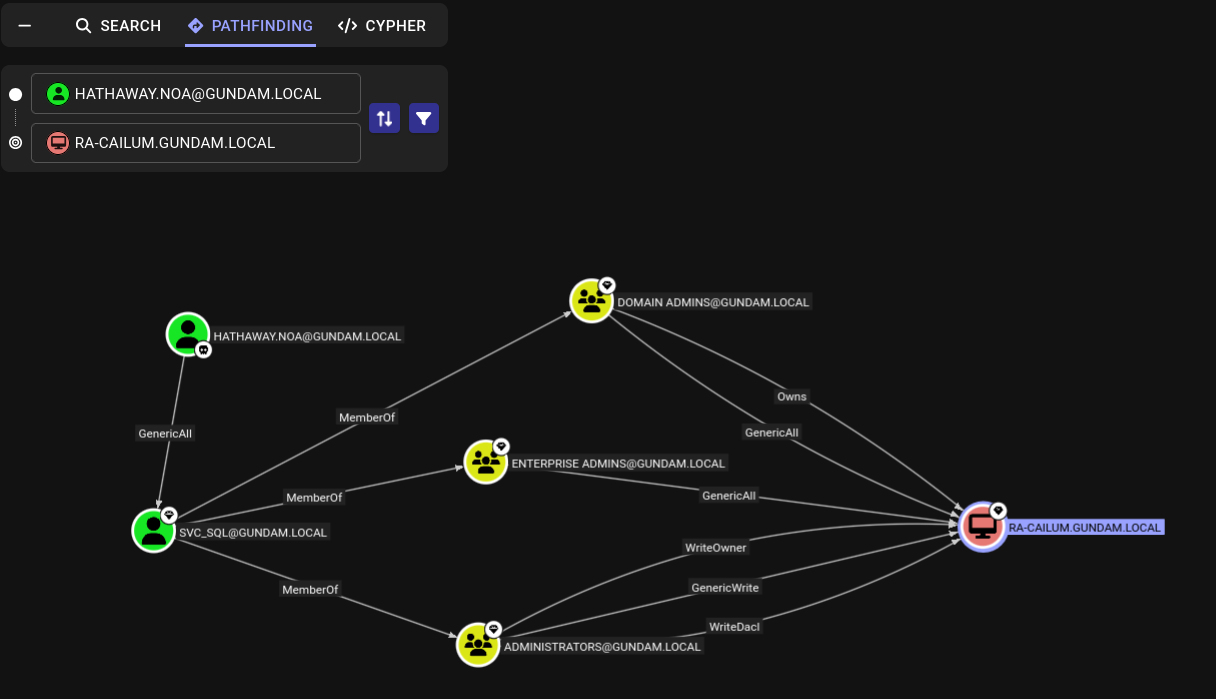
As svc_sql is a member of the Domain Admins group, it has ownership and full control over the DC. This means, if we compromise the svc_sql through the GenericAll access rights hathaway.noa possesses over the service account, we can leverage our control over svc_sql to fully compromise the domain.
Cypher
Cypher is a query language for graph databases that BloodHound supports. It allows us to discover objects that matches certain criteria (e.g. all Kerberoastable Users), or relationships between objects that matches our criteria (e.g. find all users with PSRemote access and the machines they have access to).
Saved Queries
On the CYHPHER tab on the left side, we can clicking on Saved Queries to find queries that comes with each BloodHonud install.
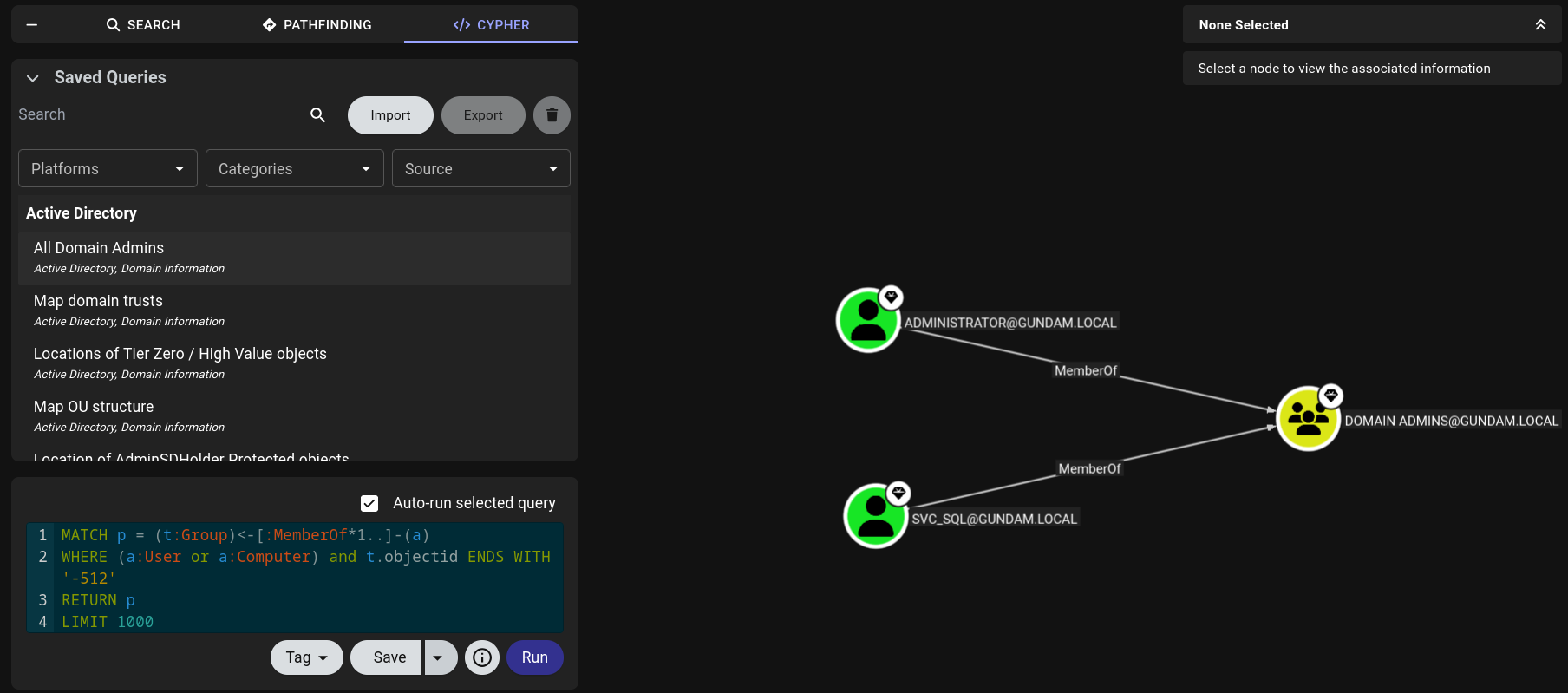
There are many saved queries that may be particularly helpful. We can search for particular queries like All Kerberoastable Users or filter by Platform, Categories, or Source.
Custom Queries
We may also write custom Cypher queries. To run a custom query, we may write it directly into the query box below Saved Query or paste into it.
Below are a couple of custom queries that can be helpful:
Find users with WinRM privileges and the machines they have access to.
MATCH p1=shortestPath((u1:User)-[r1:MemberOf*1..]->(g1:Group)) MATCH p2=(u1)-[:CanPSRemote*1..]->(c:Computer) RETURN p2
Find users with SQL server admin privileges and the machines they have access to.
MATCH p1=shortestPath((u1:User)-[r1:MemberOf*1..]->(g1:Group)) MATCH p2=(u1)-[:SQLAdmin*1..]->(c:Computer) RETURN p2
Reference and Further Reading